
QuickBooks Desktop is widely used by businesses to manage accounting records, invoices, payroll information, customer transactions and financial reports. Multi-User Mode is essential for companies where several employees access the same company file. Network communication problems can interrupt this process and prevent employees from accessing shared financial data.
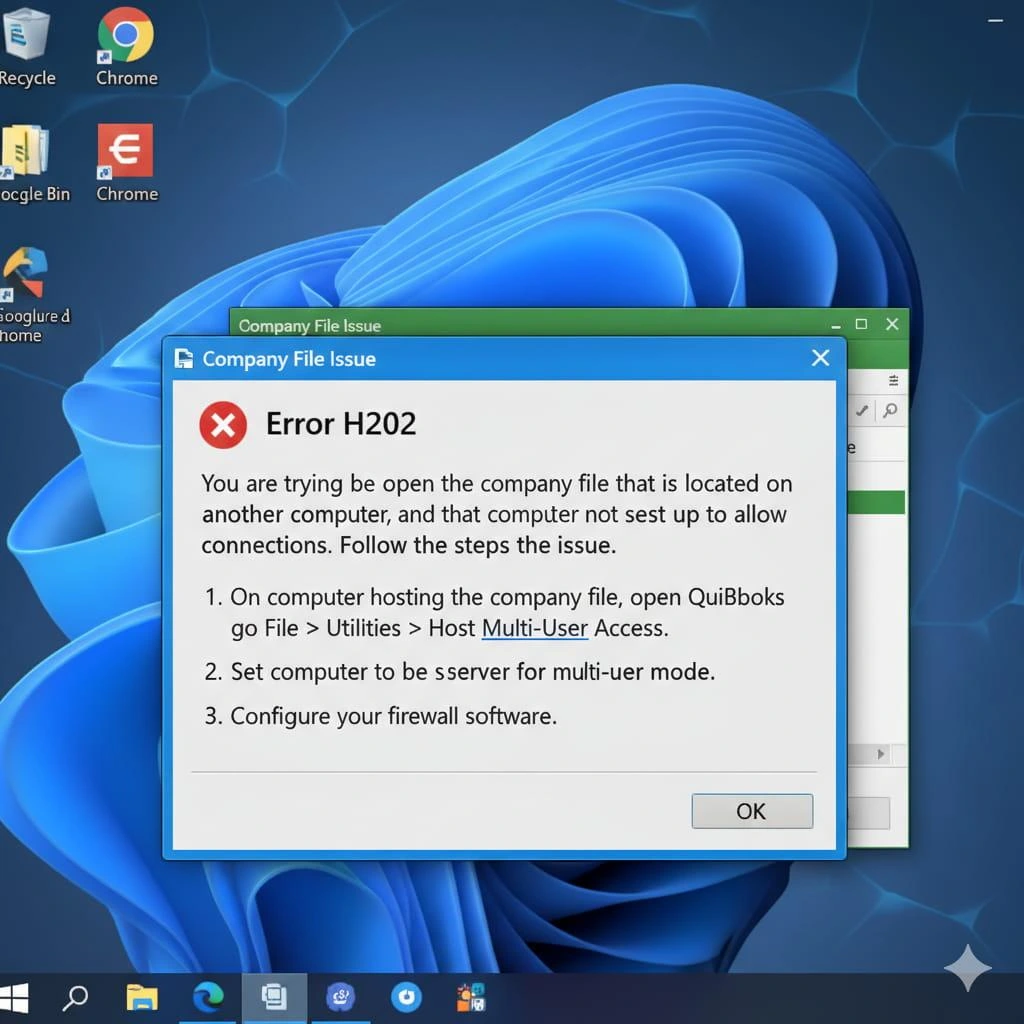
One common issue users encounter is QuickBooks Error H202. This error generally appears when a workstation cannot communicate successfully with the computer hosting the QuickBooks company file. It can interrupt Multi-User Mode, prevent access to shared company data and delay routine accounting activities.
The problem is not necessarily caused by a damaged company file. In many cases, the underlying issue involves incorrect hosting configuration, blocked firewall ports, an inactive QuickBooks Database Server Manager service, DNS resolution problems or network connectivity restrictions.
This guide explains what QuickBooks Error H202 means, why it occurs, how to identify its underlying cause and which troubleshooting methods can help restore multi-user access. It also covers preventative measures that businesses can use to reduce the possibility of repeated network-related interruptions.
If you need additional technical guidance with QuickBooks Desktop connectivity, Data Service Team provides information and support resources through Our Website or by phone at +1-(888)-718-7888.
What Is QuickBooks Error H202?
QuickBooks Error H202 is a multi-user connectivity error that occurs when QuickBooks Desktop cannot establish the required communication with the server computer hosting the company file.
In a typical multi-user environment, one computer stores the company file and acts as the host. Other computers, commonly called workstations, connect to that host through a local network.
When a workstation attempts to access the company file, QuickBooks must communicate with the server and its database services. If something prevents that communication, the application may display Error H202.
The error can appear when users:
- Switch from Single-User Mode to Multi-User Mode.
- Open a company file stored on another computer.
- Connect to a shared company file after a Windows update.
- Access a company file after changes to firewall or antivirus settings.
- Attempt to reconnect to a server after a network interruption.
The important distinction is that H202 primarily indicates a communication or hosting problem. It should not automatically be treated as proof that the company file is corrupted.
What Causes QuickBooks Error H202?
Finding the actual cause is important. Reopening QuickBooks or restarting computers may not fix an ongoing network configuration problem.
The following are common reasons for Error H202.
1. Incorrect Hosting Configuration
QuickBooks Desktop requires the appropriate hosting configuration for a multi-user environment.
The computer storing the company file should manage hosting. If hosting is incorrectly configured on a workstation, communication between computers can become unreliable.
Businesses that have recently changed their network setup should check their hosting configuration first.
2. Windows Firewall Blocking QuickBooks Communication
Windows Firewall protects computers by controlling incoming and outgoing network traffic. However, incorrect firewall rules can prevent QuickBooks from communicating with the database server.
This can happen after:
- Installing a new QuickBooks Desktop version.
- Updating Windows.
- Changing antivirus or firewall software.
- Moving the company file to another server.
- Modifying network security policies.
QuickBooks requires appropriate access to its application files, database services and version-specific network ports.
3. QuickBooks Database Server Manager Problems
QuickBooks Database Server Manager helps manage access to company files stored on the server computer.
If the required service is stopped, incorrectly configured or unable to scan the company file folder, workstations may fail to establish a connection.
The relevant Windows services include:
- QuickBooksDBXX
- QBCFMonitorService
The XX portion of QuickBooksDBXX corresponds to the installed QuickBooks version.
4. Network Connectivity Problems
A workstation must be able to communicate with the host computer.
An unstable LAN connection, disconnected network cable, incorrect network configuration, router issue or DNS resolution failure can prevent the workstation from locating the server.
Network interruptions are especially important to investigate when multiple computers experience H202 simultaneously.
5. Incorrect DNS or Server Name Resolution
QuickBooks workstations use the server’s network identity to establish communication.
If the server name resolves to an incorrect IP address, or the workstation cannot locate the host, the connection may fail.
This can occur following changes to:
- Server names.
- IP address assignments.
- DNS records.
- Network adapters.
- Domain configurations.
6. Incorrect Folder Permissions
The Windows account and relevant services must have the permissions necessary to access the company file folder.
If access permissions change following a Windows security update or folder relocation, Database Server Manager may not be able to access the required files.
7. Antivirus or Third-Party Security Restrictions
Some endpoint protection products apply additional network restrictions beyond Windows Firewall.
They may block QuickBooks executables, database services or network communication. This is particularly relevant when QuickBooks works on the server but fails from connected workstations.
How to Identify the Cause Before Fixing QuickBooks Error H202
Before making configuration changes, determine whether the issue affects one workstation or the entire network.
A quick diagnosis can prevent unnecessary changes to a functioning server.
Consider the following scenarios:
| What happens? | What to investigate |
| Only one workstation displays H202 | Local firewall, DNS and workstation connectivity |
| All workstations display H202 | Server services, hosting and network availability |
| QuickBooks works on the server but not elsewhere | Firewall, network permissions and database connectivity |
| The problem started after an update | Firewall rules, service status and port assignments |
| The company file was recently moved | Folder permissions, hosting and Database Server Manager scanning |
| The error appears intermittently | Network stability, DNS and security software |
This initial assessment is useful because H202 does not have one universal cause.
How to Fix QuickBooks Error H202: Step-by-Step Troubleshooting
The following methods address the most common causes of the error. Work through them in order and test Multi-User Mode after each significant change.
Solution 1: Verify QuickBooks Hosting Settings
Start by checking which computer is responsible for hosting the company file.
In a typical self-hosted environment, the server computer should be configured to host multi-user access, while ordinary workstations should not independently host the same company file.
On each workstation:
- Open QuickBooks Desktop.
- Do not open the company file.
- Select the File menu.
- Open Utilities.
- If Stop Hosting Multi-User Access appears, select it.
- If Host Multi-User Access appears, leave it unselected.
Repeat this check on the other workstations.
On the server computer:
- Open QuickBooks Desktop.
- Select File.
- Open Utilities.
- If Host Multi-User Access appears, select it.
- If Stop Hosting Multi-User Access appears, leave the existing hosting configuration unchanged.
Avoid repeatedly switching hosting settings without first identifying the designated host.
Once the settings are checked, reopen the company file from a workstation and test Multi-User Mode.
Solution 2: Check QuickBooks Database Server Manager
Database Server Manager is an important component of a self-hosted QuickBooks Desktop multi-user environment.
It helps the server computer manage access to shared company files.
Follow these steps:
- Log in to the computer that stores the company file.
- Open the Windows Start menu.
- Search for QuickBooks Database Server Manager.
- Open the application.
- Select the Scan Folders tab.
- Check whether the folder containing the company file is listed.
- If it is missing, select Browse and locate the correct folder.
- Select Start Scan.
Allow the scan to finish.
Database Server Manager checks the selected folders and helps configure the required firewall permissions.
After scanning, open QuickBooks on a workstation and test the connection.
Important: Scan the actual folder containing the company file rather than selecting an unrelated parent directory simply to complete the scan.
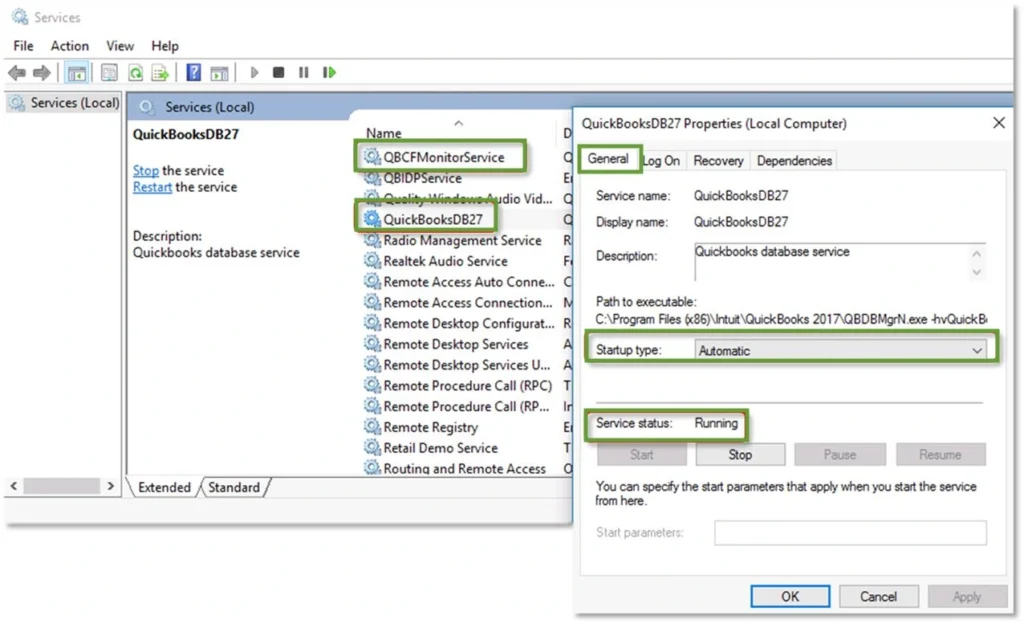
Solution 3: Verify QuickBooks Database Services in Windows
If Database Server Manager does not resolve the problem, check whether the relevant Windows services are running.
Two services deserve particular attention:
- QuickBooksDBXX
- QBCFMonitorService
To check them:
- Open the Windows Start menu on the server.
- Search for Run.
- Open the Run dialog box.
- Enter services.msc.
- Press Enter.
- Locate QuickBooksDBXX in the services list.
- Open its Properties.
- Check the Startup type and select Automatic if appropriate.
- Check the Service status.
- If the service is stopped, select Start.
- Select Apply and then OK.
Repeat the process for QBCFMonitorService.
If the services are already running, do not repeatedly restart them without a reason.
The QuickBooksDBXX service name varies by installed version. Do not assume that every computer will display the same service identifier.
Solution 4: Configure Windows Firewall for QuickBooks Desktop
Firewall restrictions are one of the important causes to investigate when QuickBooks cannot communicate with the server.
The objective is to allow legitimate QuickBooks application traffic without unnecessarily weakening the computer’s security.
Start with the QuickBooks Database Server Manager scan. It can help configure the required firewall permissions.
If the problem continues, inspect the firewall rules manually.
Step 1: Identify the correct QuickBooks port
For QuickBooks Desktop 2019 and later, dynamic ports are used. The assigned port can vary by installation.
To identify the assigned port:
- Open QuickBooks Database Server Manager.
- Select the Port Monitor tab.
- Locate the relevant QuickBooks version.
- Record its displayed port number.
- Use that port when creating the appropriate firewall exception.
Do not automatically copy an old port range from an unrelated QuickBooks installation.
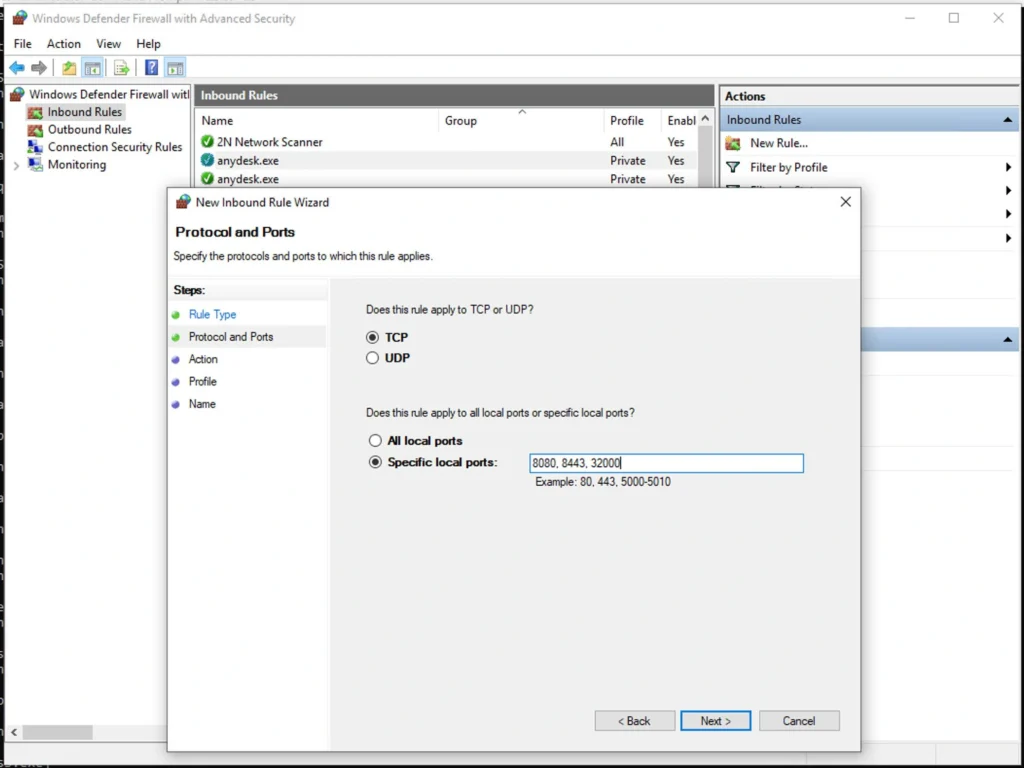
Step 2: Create an inbound firewall rule
- Open Windows Defender Firewall with Advanced Security.
- Select Inbound Rules.
- Select New Rule.
- Choose a Port.
- Select TCP.
- Enter the port assigned to your installed QuickBooks version.
- Select Allow the Connection.
- Apply the rule to the appropriate network profiles.
- Give the rule a descriptive name.
- Save the configuration.
Step 3: Configure the corresponding outbound rule
If required by your network configuration, create a matching outbound rule using the same verified TCP port.
Also review the relevant QuickBooks executable and service permissions.
Security recommendation: Apply firewall exceptions only to the necessary trusted network profiles. Do not disable Windows Firewall permanently or expose QuickBooks database ports directly to the public internet.
Solution 5: Check Network Discovery and File Sharing
Windows Network Discovery allows computers on a network to locate other devices.
If network discovery is disabled, workstations may have difficulty locating the server.
To check it:
- Open the Windows Start menu.
- Search for Network and Sharing Center.
- Select Change advanced sharing settings.
- Locate the appropriate network profile.
- Enable Network Discovery if permitted by your network policy.
- Enable File and Printer Sharing where required.
- Save the changes.
Check the server and the affected workstations.
Also verify that the computers are connected to the intended private or domain network rather than an isolated guest network.
Solution 6: Test the Server Connection Using the Ping Command
Testing connectivity helps determine whether a workstation can reach the server.
First, identify the server computer’s hostname.
On the server:
- Open the Windows Start menu.
- Search for Run.
- Enter cmd.
- Press Enter.
- Type ipconfig /all.
- Press Enter.
- Locate Host Name under Windows IP Configuration.
- Record the hostname.
On the workstation:
- Open Command Prompt.
- Enter the following command:
ping SERVERNAME
Replace SERVERNAME with the actual hostname of the server.
For example:
ping OFFICE-SERVER
If the server responds successfully, basic network communication is working.
If the command returns a timeout or packet loss, investigate the network connection, DNS configuration, routing and firewall restrictions.
A successful ping does not prove that QuickBooks database services or the required TCP port are accessible. It only confirms that the tested network path responds to ICMP traffic.
This distinction is important when diagnosing H202.
Solution 7: Verify Shared Folder Permissions
QuickBooks must have appropriate access to the company file folder.
If the file is stored on the server, review its Windows sharing and security permissions.
- Open File Explorer on the server.
- Locate the folder containing the company file.
- Right-click the folder.
- Select Properties.
- Open the Sharing tab.
- Review Advanced Sharing and the configured permissions.
- Open the Security tab.
- Review the relevant user and service permissions.
Ensure that authorised users and the required QuickBooks services have the access necessary for the intended multi-user setup.
Do not grant unrestricted access to Everyone merely to test the connection. Use the minimum appropriate permissions and follow your organisation’s security policies.
Solution 8: Run QuickBooks File Doctor
QuickBooks File Doctor is a diagnostic utility available through QuickBooks Tool Hub.
It can help investigate certain company-file and network-related problems.
To run it:
- Close QuickBooks Desktop on the affected computers.
- Open QuickBooks Tool Hub on the server.
- Select Company File Issues.
- Choose Run QuickBooks File Doctor.
- Wait for the utility to open.
- Select the affected company file.
- If the file is not displayed, browse to its location.
- Select Check your Network.
- Select Continue.
- Enter the QuickBooks administrator password when requested.
- Follow the instructions displayed by the utility.
Allow the diagnostic process to complete before testing the connection again.
If the utility cannot open or complete its scan, verify the installation and investigate the server configuration separately.
Solution 9: Review Antivirus and Third-Party Security Settings
If the firewall configuration appears correct but H202 continues, inspect any additional endpoint protection software.
Check whether the security application is blocking:
- QuickBooks Desktop executables.
- Database Server Manager.
- QBCFMonitorService.
- The assigned QuickBooks TCP port.
- Communication between the server and authorised workstations.
Use the security product’s application and network permission settings to create narrowly scoped exceptions where necessary.
Do not permanently turn off antivirus protection.
If disabling a security component temporarily resolves the problem during an authorised test, enable protection again immediately. Create an appropriate exception for QuickBooks to allow the required network communication without compromising system security.
How to Use QuickBooks Tool Hub to Troubleshoot Error H202
QuickBooks Tool Hub brings together utilities that help investigate common QuickBooks Desktop problems.
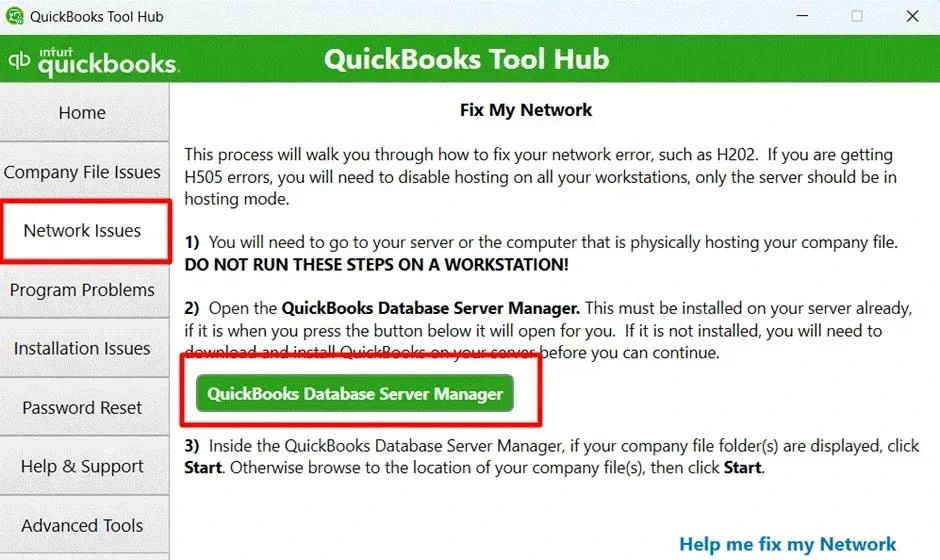
For H202, the Network Issues section is particularly relevant because it provides access to Database Server Manager.
The general process is:
- Close QuickBooks Desktop.
- Obtain the current Tool Hub installer from the official Intuit website.
- Install the application on the server computer.
- Open QuickBooks Tool Hub.
- Select Network Issues.
- Open QuickBooks Database Server Manager.
- Scan the folder containing the company file.
- Allow the scan to finish.
- Test Multi-User Mode from an affected workstation.
If the problem involves a company-file diagnostic issue, the File Doctor utility can also be considered.
Tool Hub is a troubleshooting resource, not a replacement for correct network, hosting or firewall configuration.
Businesses that need a more detailed explanation of the installation and available utilities can consult the Data Service Team resource on QuickBooks Tool Hub.
What If QuickBooks Error H202 Appears After a Windows or QuickBooks Update?
An update-related occurrence deserves special attention.
Software and operating system updates can change application files, security permissions, network configurations or firewall rules.
If H202 appears immediately after an update, consider the following checks:
1. Recheck firewall rules
Confirm that the current QuickBooks version is allowed through Windows Firewall.
2. Verify the dynamic port
If you installed or updated QuickBooks Desktop, check the Port Monitor tab in Database Server Manager. Confirm that the firewall rules use the currently assigned port.
3. Check database services
Make sure QuickBooksDBXX and QBCFMonitorService are available and running.
4. Rescan the company file folder
Use Database Server Manager to scan the folder containing the company file.
5. Restart affected computers
After approved configuration changes, restart the server and affected workstations if necessary.
6. Test from multiple workstations
Determine whether the issue is isolated to one computer or affects the complete network.
Avoid assuming that reinstalling QuickBooks will automatically fix an update-related network problem.
Advanced Troubleshooting: DNS, Server Name and Network Configuration
Some H202 cases need closer technical review in business environments with domain-managed computers, virtual servers or customised hosting setups.
Check Server Name Resolution
A server hostname may not resolve correctly because of outdated DNS records, incorrect network settings or changes to the server’s IP address.
From a workstation, you can use:
nslookup SERVERNAME
Replace SERVERNAME with the actual server hostname.
Compare the returned address with the server’s current network configuration.
If they do not match, investigate DNS and network configuration before changing QuickBooks settings.
Check the Server’s IP Configuration
On the server, run:
ipconfig /all
Review:
- Hostname.
- IPv4 address.
- Subnet mask.
- Default gateway.
- DNS servers.
Compare the relevant details with the workstation configuration.
If the server uses a DHCP-assigned address, make sure its address assignment remains consistent with the network’s DNS and hosting configuration.
Understand the Difference Between Ping and Port Connectivity
Ping tests basic IP connectivity using ICMP.
QuickBooks also needs the relevant TCP connection to be available.
A successful ping therefore does not guarantee that QuickBooks can communicate with Database Server Manager.
Where appropriate, an administrator can test the assigned TCP port using PowerShell:
Test-NetConnection SERVERNAME -Port PORTNUMBER
Replace SERVERNAME and PORTNUMBER with the actual server hostname and port identified in Database Server Manager.
Review the TcpTestSucceeded result.
If the test fails, investigate the firewall, listening service, routing and network access restrictions.
Do not assume a failed port test automatically means the company file is damaged.
Check for Hosting Environment Limitations
Not all storage configurations are compatible with QuickBooks Database Server Manager.
According to Intuit, QuickBooks Database Server Manager does not support Network Attached Storage (NAS) devices. Storing a company file on NAS hardware can create compatibility and connectivity problems.
Before troubleshooting, verify that the company file is stored in a supported hosting environment. Businesses using managed hosting should contact their hosting provider to review server settings, network access and database service configuration.
QuickBooks Error H202 on a Hosted Server: What Should You Check?
Businesses using hosted QuickBooks environments should approach H202 differently from businesses running a simple office LAN.
The hosting provider may manage:
- Server access.
- Firewall rules.
- Remote desktop configuration.
- Database services.
- Network segmentation.
- Shared-folder permissions.
When using a third-party hosting provider, first determine whether QuickBooks Error H202 affects a single user or everyone accessing the hosted environment.
Do not make unsupported changes to managed server firewall rules or remote access configurations.
Common Mistakes to Avoid When Fixing QuickBooks Error H202
Incorrect troubleshooting can make a relatively simple network problem more difficult to resolve.
Avoid the following mistakes:
- Disabling the firewall permanently: This removes an important security layer without addressing the underlying configuration problem.
- Using outdated port numbers: Dynamic ports used by newer QuickBooks Desktop versions should be identified from the installed server configuration.
- Changing hosting settings on every computer: Only the appropriate host should manage hosting in a typical self-hosted setup.
- Moving the company file without preparation: Changing file locations can introduce additional folder permission, hosting and Database Server Manager problems.
- Deleting network configuration files unnecessarily: Do not delete company-file support files or configuration files without understanding their purpose.
- Running repair utilities without a backup: Create and verify a company file backup before using repair tools. This helps protect your accounting data from unexpected changes or file damage.
- Assuming a successful ping means everything works: Basic network connectivity and QuickBooks database connectivity are separate checks.
How to Prevent QuickBooks Error H202 in the Future
Preventative maintenance can help reduce multi-user connectivity problems.
Maintain a Consistent Server Configuration
Use a clearly designated server computer and document its hostname, network configuration and company-file storage location.
Monitor QuickBooks Database Services
Periodically check that the relevant QuickBooks database services are running.
Keep Firewall Rules Updated
Review firewall permissions after installing a new QuickBooks version, changing server hardware or modifying the network.
Maintain Proper Folder Permissions
Review sharing and security permissions whenever users, servers or storage locations change.
Keep Reliable Company File Backups
Maintain regular backups in an appropriate secure location.
Verify that backups can be restored rather than assuming that a completed backup job guarantees recoverability.
Avoid Unnecessary Network Changes
Changes to DNS, router settings, network adapters and server names should be documented and tested.
Use Supported Hosting Arrangements
Confirm that the company file is stored in an environment compatible with the installed QuickBooks Desktop version and its hosting requirements.
Frequently Asked Questions About QuickBooks Error H202
1. What does QuickBooks Error H202 mean?
QuickBooks Error H202 means that a workstation cannot establish the required multi-user communication with the computer hosting the company file. It commonly involves server connectivity, firewall restrictions, database services or hosting configuration.
2. Why does QuickBooks Error H202 appear in Multi-User Mode?
It appears when QuickBooks cannot communicate successfully with the host computer. Common causes include incorrect hosting settings, blocked TCP ports, inactive database services and network connectivity problems.
3. Can Windows Firewall cause QuickBooks Error H202?
Yes. Firewall rules can block communication between QuickBooks workstations and the server. Checking the correct version-specific TCP port and application permissions is an important troubleshooting step.
4. How do I fix H202 using QuickBooks Tool Hub?
Open Tool Hub, select Network Issues and launch QuickBooks Database Server Manager. Scan the company-file folder and test Multi-User Mode again. File Doctor can also help investigate supported network and company-file issues.
5. Does QuickBooks Error H202 mean my company file is corrupted?
No. QuickBooks Error H202 usually indicates a network communication problem between a workstation and the computer hosting the company file. It does not automatically mean the company file is corrupted. Check the server connection, hosting settings and database services before considering any company file repair.
6. Why does H202 occur on only one workstation?
If other workstations connect successfully, investigate the affected computer’s firewall, network connection, DNS resolution, user permissions and QuickBooks installation.
7. Which QuickBooks service should be running to prevent H202?
The relevant QuickBooksDBXX service and QBCFMonitorService should be checked on the server. The exact database service identifier depends on the installed QuickBooks version.
8. Can restarting the server fix QuickBooks H202?
Restarting may help if a temporary service or network issue caused the error. However, it will not permanently correct an incorrect firewall rule, unsupported hosting configuration or persistent DNS problem.
9. What should I do if QuickBooks Error H202 keeps returning?
Investigate the server’s database services, dynamic port assignment, firewall configuration, DNS resolution and workstation connectivity. If you use managed hosting, ask the hosting provider to inspect the environment.
10. Is QuickBooks Error H202 the same as H101, H303 or H505?
No. These are different codes within the QuickBooks Desktop multi-user connectivity error family. Their causes and troubleshooting requirements can overlap, but the correct solution depends on the specific error and hosting configuration.
Conclusion: Restore Multi-User Access by Identifying the Real Cause of H202
QuickBooks Error H202 usually occurs when a workstation cannot communicate with the computer hosting the company file. Identifying the actual network or hosting problem is essential for restoring Multi-User Mode access.
Check the hosting settings, QuickBooks Database Server Manager, database services and firewall permissions. Review network discovery, server name resolution and shared-folder access. QuickBooks Tool Hub and File Doctor can also help diagnose certain network and company-file issues.
Businesses should maintain verified company file backups and use supported hosting arrangements. Regular firewall checks and proper network configuration can help prevent recurring connectivity interruptions.
For additional QuickBooks Desktop troubleshooting resources, visit Data Service Team at or call +1-(888)-718-7888.
Protecting accounting records and maintaining secure network access should remain the priority.
About the Author
Steven Moody writes practical technology and accounting-software troubleshooting content for business users. His articles focus on helping readers understand common QuickBooks Desktop issues, identify possible technical causes and follow structured troubleshooting procedures.
For additional resources, visit the Data Service Team or call +1-(888)-718-7888.
Disclaimer: This article is intended for general educational and troubleshooting purposes. QuickBooks and Intuit are trademarks of Intuit Inc. Data Service Team is an independent support resource and is not affiliated with or endorsed by Intuit Inc. Menu names and troubleshooting requirements may vary depending on the installed software version and network environment.