
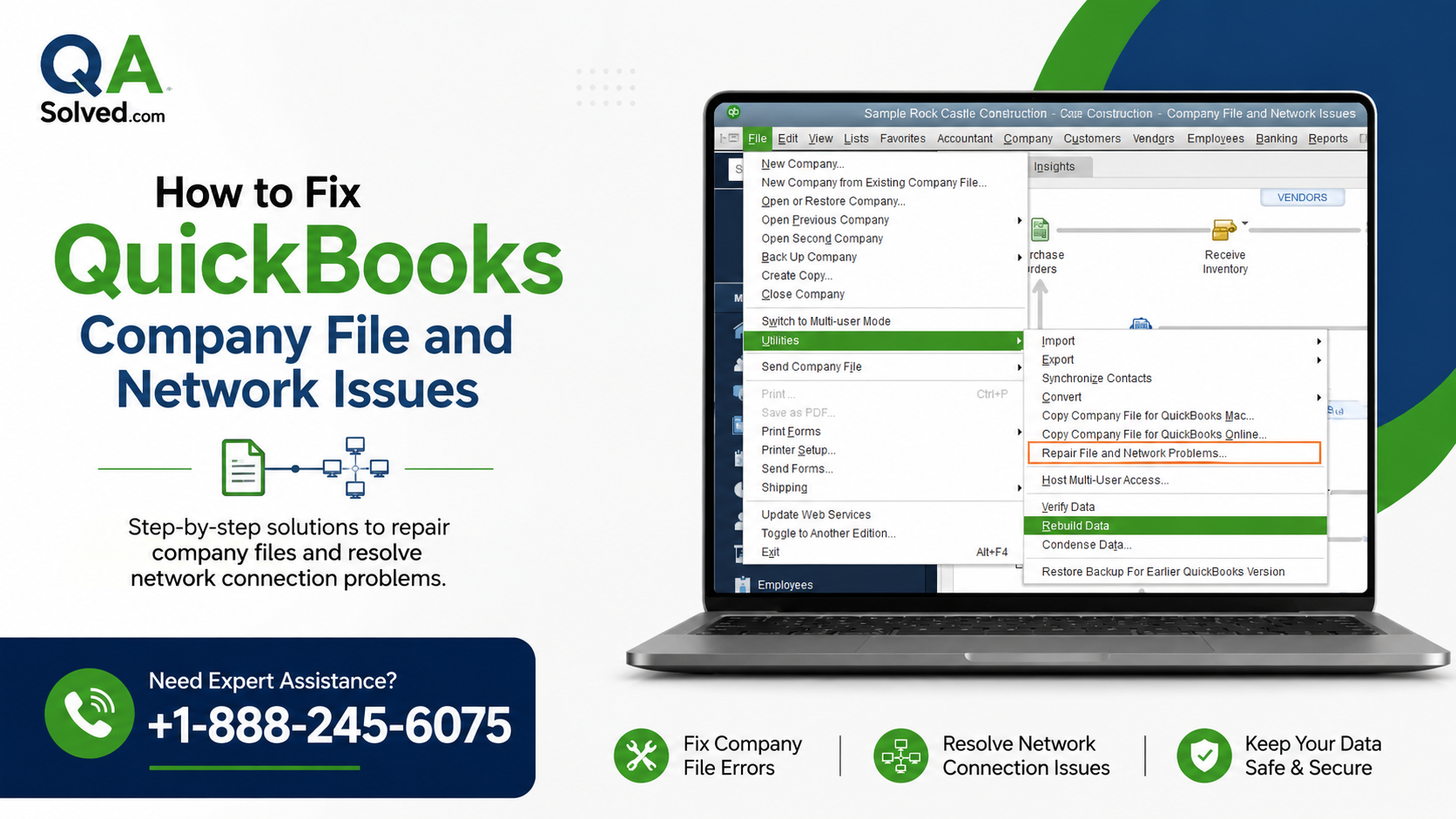
QuickBooks Desktop depends on your company file and network connection to keep your accounting data working correctly. When QuickBooks cannot open a company file, displays an error code, or shows missing customer, vendor, or employee information, the QuickBooks File Doctor can often help.
QuickBooks File Doctor is designed to diagnose and repair certain company file and network-related problems. It is especially useful when you experience errors such as -6150, -6000 -82, -6000 -305, -6000 -301, -6147, or -6130.
Before running File Doctor, make sure QuickBooks Desktop is closed. Then follow the steps below to troubleshoot the issue.
What Is QuickBooks File Doctor?
QuickBooks File Doctor is a troubleshooting tool included with the QuickBooks Tool Hub. It checks your QuickBooks company file for problems and can also identify certain network-related issues that may prevent QuickBooks from opening or accessing the file.
You may want to use the tool when:
- QuickBooks cannot open your company file.
- You receive a 6000-series company file error.
- Customer, vendor, or employee lists appear blank or incomplete.
- QuickBooks has trouble accessing a company file stored on a network.
- A company file becomes difficult to open after a network or system problem.
The tool does not repair every type of QuickBooks data problem. If the scan does not resolve the issue, additional data-repair steps may be necessary.
Step 1: Install the QuickBooks Tool Hub
The first step is to install the latest QuickBooks Tool Hub on your Windows computer. Tool Hub brings several troubleshooting utilities together in one application, including File Doctor.
For the best experience, use Tool Hub on a supported 64-bit Windows 11 system.
Follow these steps:
- Close QuickBooks Desktop and make sure it is not running in the background.
- Download the latest available version of QuickBooks Tool Hub from a trusted QuickBooks source.
- Save the installation file somewhere easy to locate, such as your Windows Desktop or Downloads folder.
- Open the downloaded QuickBooksToolHub.exe file.
- Follow the instructions displayed on your screen.
- Review and accept the license terms when prompted.
- Complete the installation.
- Double-click the QuickBooks Tool Hub icon on your desktop to launch the program.
If you do not see the Tool Hub icon, open Windows Search and type QuickBooks Tool Hub. Select the application from the search results.
Check Your QuickBooks Tool Hub Version
If Tool Hub is already installed, you can check which version you are using. Open the application and select the Home tab. The installed version appears near the bottom of the window.
Keeping the tool updated can help ensure that you have access to the latest troubleshooting improvements.
Step 2: Run Quick Fix My File
Before using File Doctor, run Quick Fix My File. This utility can quickly check and resolve certain company file problems.
To run it:
- Open QuickBooks Tool Hub.
- Select Company File Issues.
- Choose Quick Fix My File.
- Allow the tool to complete its process.
- Select OK when the process finishes.
- Open QuickBooks Desktop again.
- Try opening your company file.
If your company file opens normally, you may not need to continue. If the problem remains, proceed with QuickBooks File Doctor.
Step 3: Run QuickBooks File Doctor
If Quick Fix My File does not solve the problem, use QuickBooks File Doctor to perform a more detailed check.
Launch File Doctor from Tool Hub
- Open QuickBooks Tool Hub.
- Select Company File Issues.
- Choose Run QuickBooks File Doctor.
- Wait for the File Doctor window to open.
It can sometimes take about a minute for the utility to launch.
If File Doctor does not open automatically, search Windows for QuickBooks Desktop File Doctor and launch the application manually.
Step 4: Select Your Company File
After QuickBooks File Doctor opens, select the company file you want to check.
If your company file appears in the dropdown list, select it.
If you cannot find the file:
- Select Browse.
- Navigate to the folder where your QuickBooks company file is stored.
- Select the correct company file.
- Continue to the next step.
Make sure you select the company file associated with the problem. Running the tool against the wrong file will not resolve the issue you are experiencing.
Step 5: Choose the File Check Option
QuickBooks File Doctor may provide multiple troubleshooting choices. For a company file problem, select Check your file and use the file-check option rather than combining it with a network diagnosis when that is not required.
Then select Continue.
The tool will prepare the selected company file for scanning.
Step 6: Enter Your QuickBooks Admin Password
When prompted, enter the QuickBooks administrator password associated with the company file.
After entering the password, select Next.
File Doctor will then begin checking your company file for possible problems.
Step 7: Wait for the File Doctor Scan to Finish
The amount of time required depends largely on the size and condition of your company file. A scan may take 10–15 minutes, although larger or more complicated files can require additional time.
Do not close the tool while it is working.
It is also important to understand that File Doctor may occasionally display a message indicating that the repair was unsuccessful even when it has resolved the original problem. Because of this, test your company file after the scan finishes.
Open QuickBooks Desktop and try accessing the company file again.
What If QuickBooks File Doctor Doesn’t Fix the Problem?
File Doctor is useful for many company file and network problems, but it cannot repair every type of QuickBooks data damage.
If QuickBooks still cannot open the company file after running File Doctor, you may need to investigate other causes, including:
- Damaged QuickBooks company data.
- Incorrect file or folder permissions.
- Network configuration problems.
- Problems with hosting settings.
- An outdated QuickBooks Desktop installation.
- Damaged QuickBooks program files.
- Company files stored in an unsuitable network location.
At this stage, you may need to use additional QuickBooks Desktop data damage repair procedures.
Tips to Prevent QuickBooks Company File Problems
A few basic maintenance practices can reduce the chances of recurring company file issues.
Keep QuickBooks Updated
Install available QuickBooks Desktop updates to maintain compatibility and improve program stability.
Back Up Your Company File
Create regular backups of your QuickBooks company file. A recent backup gives you another recovery option if your working file becomes damaged.
Avoid Moving Company Files Frequently
Moving company files between folders, computers, or network locations without following the proper QuickBooks procedures can create access and permission problems.
Check Your Network Setup
If you use QuickBooks in multi-user mode, verify that the computer hosting the company file and the workstations can communicate correctly across the network.
Final Thoughts
QuickBooks File Doctor is a useful first-line troubleshooting tool when a QuickBooks Desktop company file will not open or displays certain company file and network errors. Starting with Quick Fix My File and then running QuickBooks File Doctor can help identify and resolve several common problems.
If the company file remains inaccessible after the scan, avoid repeatedly running repair tools without understanding the cause. Instead, move on to appropriate data-damage, network, or file-permission troubleshooting and consider working from a verified backup when necessary.
Frequently Asked Questions
1. When should I use QuickBooks File Doctor?
Use File Doctor when QuickBooks cannot open a company file, you encounter certain 6000-series errors, or company information appears missing or inaccessible.
2. Can QuickBooks File Doctor repair all company file errors?
No. File Doctor can resolve certain company file and network problems, but it cannot repair every type of data corruption or QuickBooks issue. Additional troubleshooting may be required.
3. Why doesn’t QuickBooks File Doctor open?
File Doctor can occasionally fail to launch from Tool Hub. If this happens, search Windows for QuickBooks Desktop File Doctor and try opening it manually.
4. How long does QuickBooks File Doctor take?
The scan time depends on the size and condition of the company file. In many cases, the process can take around 10–15 minutes, but larger files may take longer.
5. What should I do if File Doctor says the repair failed?
Do not assume the repair did not work. Open QuickBooks and test the company file first. If the problem continues, move on to other QuickBooks data-repair or network troubleshooting methods.
6. Do I need QuickBooks Tool Hub to use File Doctor?
QuickBooks File Doctor is accessed through QuickBooks Tool Hub in the standard troubleshooting process. Installing Tool Hub also gives you access to other utilities designed to resolve common QuickBooks Desktop problems.
7. Can File Doctor fix missing customer or vendor lists?
File Doctor can help with certain company file issues that cause lists or company data to become inaccessible. However, if the information remains missing after the scan, further data-damage troubleshooting may be necessary.


