Have you ever clicked “Print” and wondered what the collate option actually does? You’re not alone. Many people see it in printer settings but don’t fully understand how it affects their documents.
In simple terms, collating in printing controls how multiple copies of a document are organized. Knowing when to use it can save time, paper, and frustration especially when printing reports, assignments, or presentations.
This guide explains what collate means when printing, how it works, and when you should use it.
What Does “Collate” Mean in Printing?
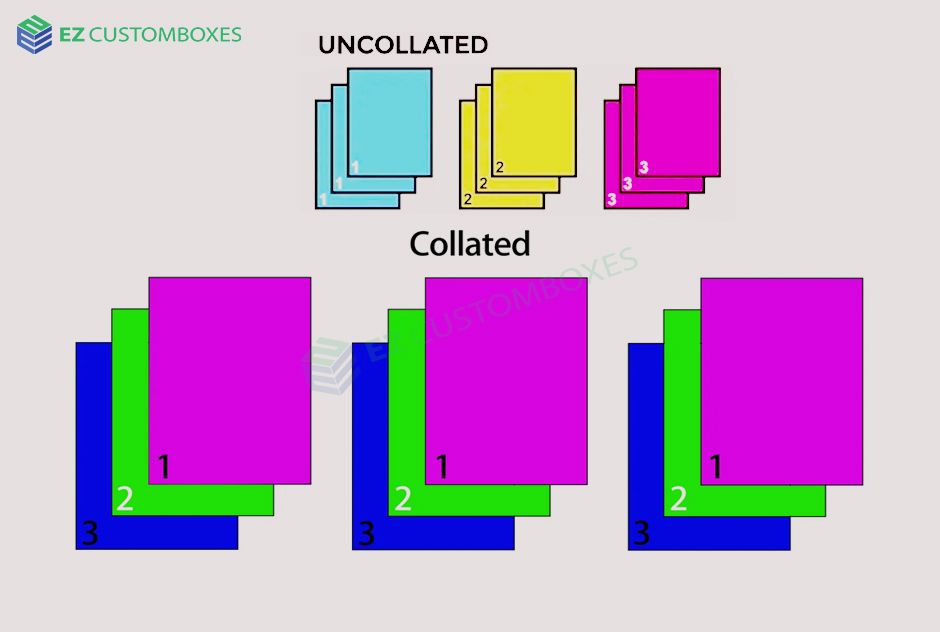
Collate meaning printing complete sets of a multi-page document in the correct order.
Example:
If you print a 3-page document (Pages 1, 2, 3) and need 2 copies:
- Collated printing:
1-2-3, 1-2-3 - Uncollated printing:
1-1, 2-2, 3-3
Collation ensures each copy is ready to use without manual sorting.
How the Collate Option Works
Most printers and print dialogs include a Collate checkbox. When enabled, the printer automatically organizes pages into full sets.
When Collate Is ON:
- Prints complete document sets
- Ideal for reports, booklets, and handouts
- Saves time and effort
When Collate Is OFF:
- Prints all copies of each page together
- Useful for single-page documents
- May require manual sorting
When Should You Use Collated Printing?
You should enable collate when printing:
- 📄 Multi-page documents
- 📚 Reports or proposals
- 🎓 School assignments
- 🧾 Instruction manuals
- 📊 Presentation handouts
Do NOT collate when:
- Printing only one page
- Printing documents that will be stapled or assembled later by machine
Collate vs Uncollate: Key Differences
| Feature | Collated | Uncollated |
|---|---|---|
| Page Order | Full sets in order | Same pages grouped |
| Manual Sorting | Not needed | Often required |
| Best For | Reports, booklets | Bulk single-page prints |
How to Turn On Collate (Step-by-Step)
On Windows:
- Open Print
- Click Printer Properties
- Check Collate
- Click Print
On macOS:
- Open Print dialog
- Find Copies
- Check Collated
- Print document
Most modern printers support collation automatically.
Common Collate Printing Mistakes to Avoid
- Forgetting to enable collate for reports
- Printing uncollated copies and wasting time sorting
- Assuming the printer auto-collates by default
Always double-check your print preview before printing.
FAQs: Collate Option in Printing
What does collate mean when printing multiple copies?
The collate meaning printer, organized sets of a document instead of grouping identical pages together.
Should I collate when printing one page?
No. Collation only matters for multi-page documents.
Does collating use more ink or paper?
No. It only changes page order, not ink or paper usage.
Is collate available on all printers?
Most modern printers support collating, either digitally or mechanically.
What happens if I don’t collate?
You may need to manually arrange pages into the correct order.
Why Understanding Collation Matters
Understanding print settings like collation:
- Improves efficiency
- Reduces errors
- Saves time in professional and academic work
It’s a small setting that makes a big difference.
Final Takeaway (CTA)
Before your next print job, check the collate option. It ensures your documents come out organized, professional, and ready to use no extra work required.
Pro Tip: Always preview your print settings before clicking “Print.”