QuickBooks is a popular accounting software that helps businesses manage their books, payroll, and finances more easily. But like other software that uses a network, QuickBooks can sometimes have problems that stop it from working properly. One such problem is Error H202, which happens often in setups where multiple people are using the same QuickBooks file at the same time. Understanding why this error happens, what it looks like, and how to fix it is important to keep your business running smoothly and allow everyone to work together.
What is QuickBooks Error H202?
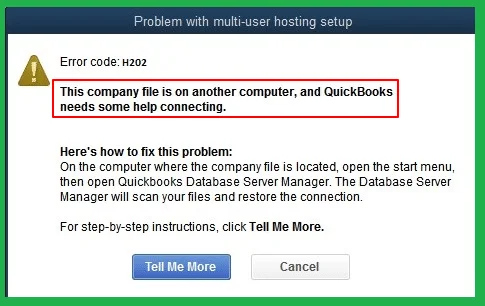
QuickBooks Error H202 occurs when QuickBooks attempts to access a company file hosted on another computer (server) in a multi-user setup but fails to establish a connection. Essentially, it indicates that the software cannot reach the server where the company file is stored. This error is common in networked environments where multiple users need access to the same QuickBooks data simultaneously.
Typical messages that appear when this error occurs include:
- “QuickBooks is attempting to open this company file. The file is on another computer, and QuickBooks needs some help connecting.”
- “Error H202: QuickBooks is trying to access the company file on another computer, but it cannot connect.”
Common Causes of QuickBooks Error H202
There are several reasons why Error H202 may appear when multiple users are sharing the same QuickBooks file:
- If more than one computer is set to host the company file at the same time, it can cause problems. Only the server should be hosting the file.
- If the network connection is not stable or broken, QuickBooks can’t reach the server.
- Firewalls or security software like antivirus programs and Windows Defender may block QuickBooks from connecting to the server.
- If the company file is damaged, QuickBooks may not be able to open it from another computer.
- If DNS or IP settings are incorrect, the workstation may not be able to locate the server.
- If the QuickBooks Database Server Manager is not working properly on the server, multi-user access can fail.
Symptoms of QuickBooks Error H202
Recognizing the signs of Error H202 can help you respond quickly:
- You can’t open the company file in multi-user mode.
- You see error pop-ups about not being able to connect to the server.
- When trying to switch to multi-user mode, the software may slow down or freeze.
- Network drives may not show up or be accessible from QuickBooks.
How to Fix QuickBooks Error H202
To fix QuickBooks Error H202, you can follow these steps to fix network and software issues:
Step 1: Verify Hosting Settings
Open QuickBooks on every computer.
Go to File > Utilities.
On the server computer, select Host Multi-User Access.
On the workstations, make sure to select Stop Hosting Multi-User Access.
Fixing the hosting setup helps avoid problems and lets QuickBooks correctly connect to the company file.
Step 2: Use QuickBooks Database Server Manager
Install the latest version of QuickBooks Database Server Manager on the server.
Run the Database Server Manager to scan the folder where the company file is stored.
This ensures the server is set up correctly for sharing the file with multiple users.
Step 3: Configure Firewall and Security Software
Make sure QuickBooks can communicate through your firewall:
Open your firewall settings, whether it’s Windows Firewall or another security program.
Add exceptions for QuickBooks ports like 8019, 56728, 55378–55382.
Allow QuickBooks to use both incoming and outgoing connections to prevent it from being blocked.
Step 4: Check Network Connection
Verify that the workstation can connect to the server:
Press Windows key + R, and type \ServerName to access the server.
Ensure the folder holding the company file is shared and available.
Try pinging the server using ping ServerName in the Command Prompt.
If there’s a problem connecting, fix your network or get help from your IT support.
Step 5: Update QuickBooks
Outdated QuickBooks can cause multi-user issues. Make sure all computers have the latest version:
Open QuickBooks and go to Help > Update QuickBooks Desktop.
Click Update Now and follow the on-screen instructions.
Restart QuickBooks after the update.
Step 6: Repair or Rebuild the Company File
If the company file is damaged:
Use QuickBooks File Doctor to repair file issues.
Go to QuickBooks Tool Hub, choose Company File Issues, and run QuickBooks File Doctor.
This helps fix any damage that’s stopping multi-user access.
Step 7: Contact QuickBooks Support
If the error continues even after trying all these steps, reach out to QuickBooks support for professional help. They can help with complex network setup issues and server problems to get your access back.
QuickBooks Support Phone Number: +1-866-500-0076
Preventive Measures for QuickBooks Error H202
Preventive Measures for QuickBooks Error H202
To stop Error H202 from happening again, follow these best practices:
- Always set up one server to host the company file.
- Keep QuickBooks and QuickBooks Database Server Manager updated.
- Regularly back up your company file to avoid data loss.
- Check firewall and security software settings to prevent accidental blocking.
- Ensure your network has reliable connections with good routers and switches.
Conclusion
QuickBooks Error Code H202 is a common issue when multiple users are trying to access the same file over a network. If not handled quickly, it can stop your business from running smoothly. By knowing the possible reasons, from wrong hosting settings to firewall issues, businesses can take steps to fix the problem and restore multi-user access.
If you’re having trouble removing Error H202, you can get expert help from QuickBooks support at +1-866-500-0076. They can quickly and securely fix the issue, helping your accounting work go back to normal without delays.
By following these preventives and being proactive, your business can avoid downtime, keep multi-user access working, and make sure accounting operations run smoothly all the time.