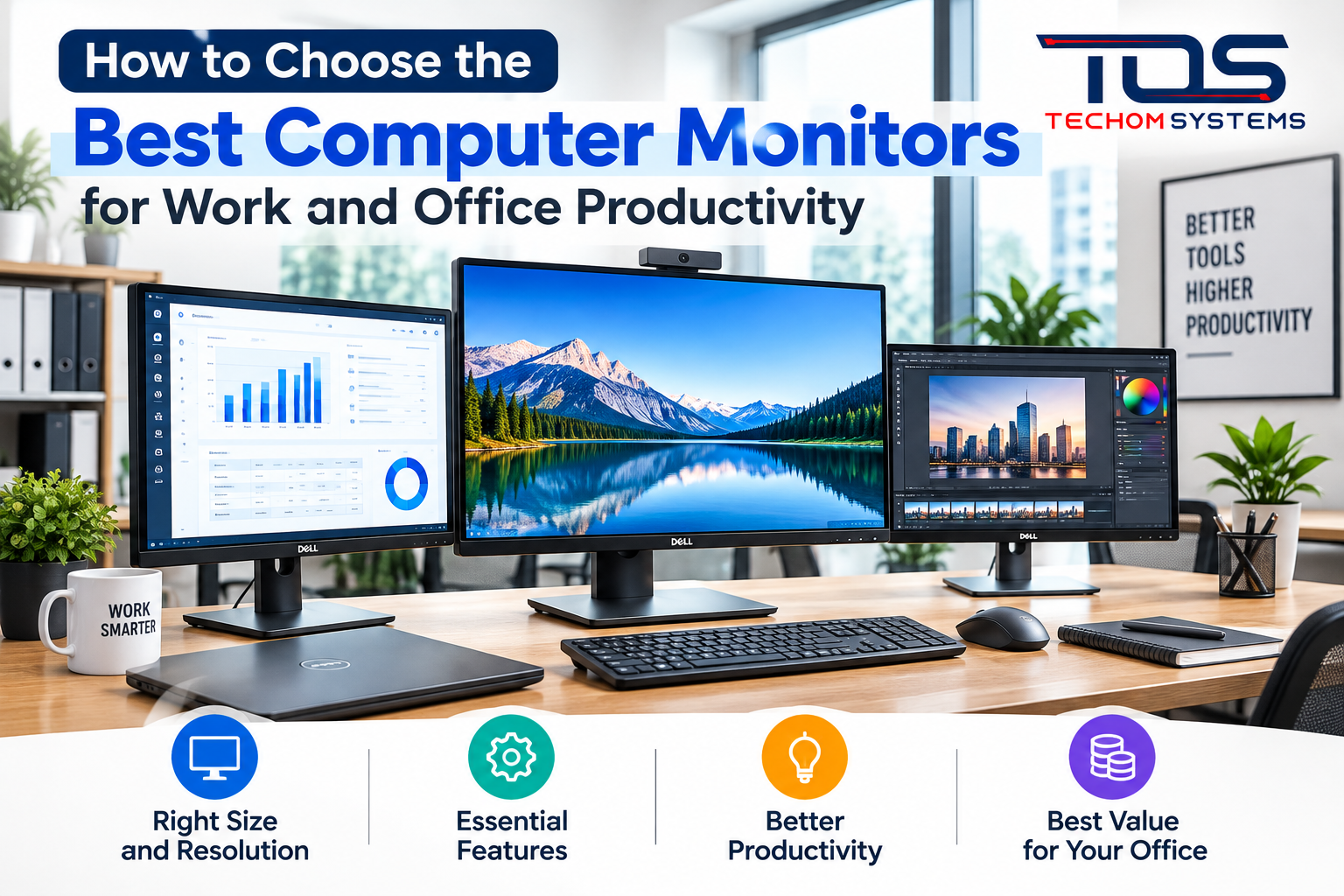
In today’s digital workplace, having the right display can make a significant difference to productivity, comfort, and everyday business operations. Whether you work from a home office, manage a corporate team, or operate a growing business, choosing the right monitor helps create a more efficient working environment. The best computer monitors for work offer clear visuals, comfortable viewing, reliable performance, and enough screen space to handle multiple tasks.
For professionals looking to upgrade their workspace, TECHOM Systems Shop provides a useful destination to explore business technology and workplace computing solutions. Understanding the features that matter most can help you select a display that meets your professional needs and supports long-term productivity.
Why the Right Office Monitor Matters
A monitor is one of the most frequently used devices in a modern office. Employees may spend hours reviewing documents, attending video meetings, analysing spreadsheets, designing presentations, or managing business applications. A suitable display can make these activities easier by providing a clear image and a comfortable workspace.
When selecting office computer monitors, consider screen size, resolution, connectivity, ergonomics, and the type of work you perform. A display designed for general office tasks may be different from one required for graphic design, financial analysis, or professional video editing.
The right choice should balance performance, usability, and budget rather than focusing on screen size alone.
Key Features to Consider When Buying a Work Monitor
1. Screen Size and Resolution
Screen size affects how much information you can view comfortably. A 24-inch monitor is often suitable for everyday office tasks, while a 27-inch display can provide additional workspace for multitasking. Larger displays may be useful for users who regularly work with complex spreadsheets, creative applications, or multiple windows.
Resolution is equally important. Full HD can meet many standard office requirements, while QHD and 4K displays provide greater detail and additional workspace for compatible applications. Choose a resolution that suits your work, viewing distance, and computer’s graphics capabilities.
2. Ergonomic Adjustments
Comfort should be a priority when choosing a display for daily use. Look for a monitor with height adjustment, tilt, swivel, or pivot functionality where appropriate. These features help you position the screen at a comfortable viewing angle.
A properly arranged workspace can help reduce unnecessary neck and eye strain. Keeping the monitor at a suitable distance, adjusting brightness to match the environment, and taking regular breaks are also helpful habits during long working hours.
3. Connectivity and Compatibility
Modern offices use laptops, desktops, docking stations, webcams, and other connected devices. Before purchasing a monitor, check whether it supports the connections your setup requires.
HDMI and DisplayPort are common options, while USB-C can be particularly useful for compatible laptops because a single cable may support video, data, and power delivery. However, USB-C capabilities vary by model, so verify the specifications before buying.
For businesses managing multiple employees, standardising monitor connectivity can simplify installation, reduce cable clutter, and make equipment upgrades easier.
4. Display Quality and Eye Comfort
Display quality affects readability and the overall working experience. Look for clear text, consistent colours, appropriate brightness, and an anti-glare screen if your office receives significant ambient light.
Features such as low-blue-light modes and flicker-reduction technology may also be useful, depending on the monitor. These features do not eliminate the need for sensible screen habits, but they can help users customise their viewing experience.
5. Refresh Rate and Response Time
For standard office applications, a 60Hz refresh rate is generally sufficient. Higher refresh rates can provide smoother movement when scrolling, navigating interfaces, or working with motion-heavy content.
Response time and refresh rate are more critical for gaming and certain creative workflows than for ordinary document-based work. Business buyers should focus on the features that directly support their employees’ daily responsibilities.
Finding the Right Monitor for Different Work Environments
The ideal monitor for office use depends on how the workspace operates and which applications employees use most frequently.
Home offices: A compact Full HD display or a 27-inch monitor can provide a practical balance of screen space and desk usage. An adjustable stand and suitable connectivity are valuable additions.
Corporate offices: Businesses may prioritise reliable performance, ergonomic adjustments, consistent specifications, and compatibility with existing computers and docking stations.
Finance and administration: Larger screens or dual-monitor configurations can make it easier to compare spreadsheets, manage records, and work across several applications.
Creative teams: Designers, photographers, and video professionals may benefit from higher resolutions, accurate colour reproduction, and broader colour-gamut support.
Hybrid workplaces: USB-C connectivity, built-in hubs, and straightforward laptop connections can make it easier for employees to move between home and office environments.
Single Monitor or Dual-Monitor Setup?
A single monitor can be sufficient for email, word processing, browsing, and routine administration. However, a dual-monitor setup can provide additional workspace for employees who regularly compare documents, communicate with colleagues, or use several business applications simultaneously.
Before choosing two displays, consider available desk space, computer compatibility, cable management, and employee preferences. In some cases, one larger monitor may provide a simpler alternative to two smaller screens.
Businesses should also consider whether monitor arms, docking stations, and other accessories are needed to create a clean and practical workspace.
Making a Cost-Effective Monitor Investment
Price is important, but the cheapest option may not always provide the best long-term value. Consider warranty coverage, build quality, power consumption, connectivity, ergonomic features, and suitability for the intended workload.
For organisations purchasing multiple displays, selecting consistent models can simplify support, replacement, and equipment management. It is also worth reviewing the total cost of ownership, including accessories and any additional docking equipment required.
TECHOM Systems Shop can be included in your research when exploring business technology solutions and monitor options for different workplace requirements. Compare product specifications carefully and select a model that meets your practical needs and budget.
Conclusion
Choosing the right monitor involves more than selecting a screen with a suitable size. Resolution, ergonomics, connectivity, display quality, and compatibility all contribute to a productive office setup. By understanding these factors, individuals and businesses can identify the best computer monitors for work without paying for unnecessary features.
Whether you need a dependable display for everyday administration, a larger screen for multitasking, or a high-resolution monitor for creative work, a considered purchase can support a more comfortable and efficient workspace. Explore suitable options, compare specifications, and choose a monitor that fits your professional requirements.
Frequently Asked Questions
1. What size monitor is best for office work?
A 24-inch monitor is a practical option for general office tasks, while a 27-inch display can offer more space for multitasking. The best size depends on desk space, viewing distance, and the applications you use.
2. Are dual monitors better for productivity?
Dual monitors can help users manage multiple applications, compare documents, and switch between tasks more easily. However, a single large monitor may be sufficient for many office roles.
3. Is Full HD resolution enough for business use?
Full HD is suitable for many everyday business activities, including email, document editing, web browsing, and video meetings. QHD or 4K may be preferable when greater detail or additional workspace is required.
4. Which connectivity options should I look for in an office monitor?
HDMI and DisplayPort are widely used. USB-C may be helpful for compatible laptops, especially when the monitor supports video, data, and power delivery through one cable.
5. How can I choose a comfortable monitor for long working hours?
Look for adjustable positioning, clear text, suitable brightness, and an anti-glare screen where needed. Maintain a comfortable viewing distance and take regular breaks.
6. Where can I explore business monitor solutions?
TECHOM Systems Shop offers business technology solutions to help professionals and organisations find suitable monitors for their workplace needs. By comparing screen sizes, display quality, connectivity, and ergonomic features, businesses can choose monitors that support productivity, comfort, and efficient daily operations.